Intro to Sponsors
Navigate to the Enroll an employee page.
Users with the sponsor WP user role will see this:
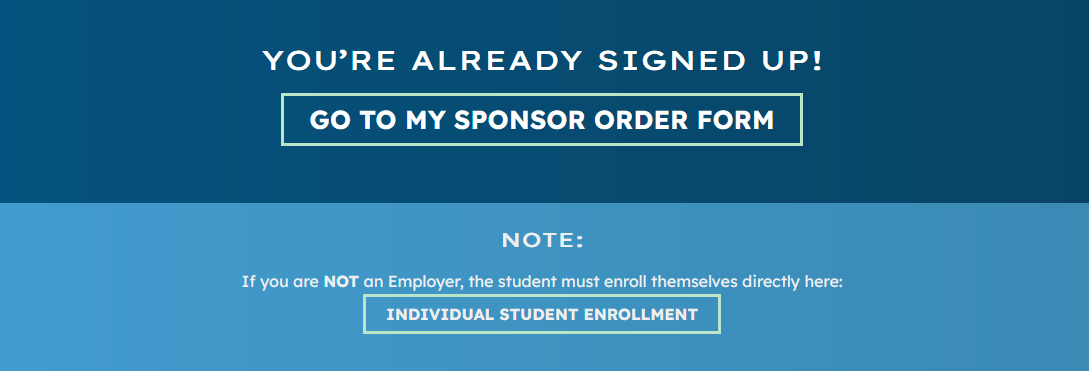
Non-registered and non-sponsor users will see a Sign up form:
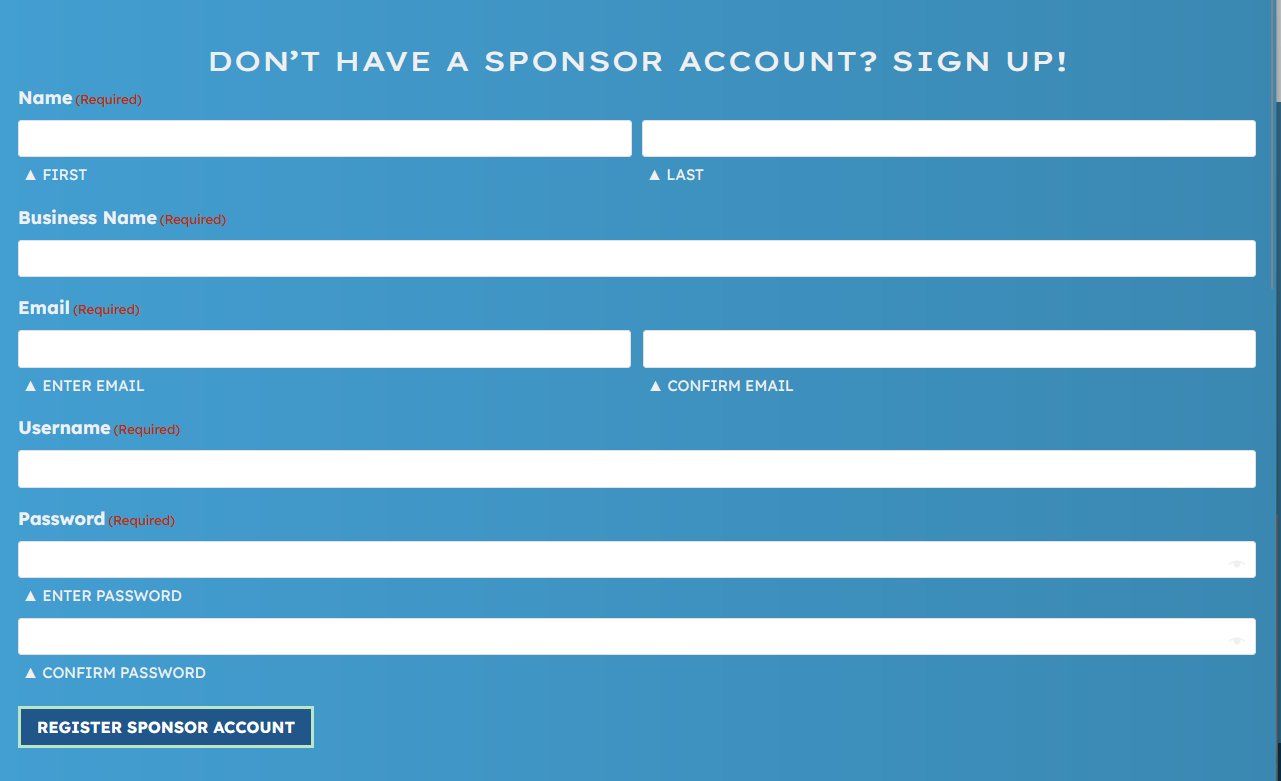
This is a Gravity Form, which can be found here The Gravity Form, using the User Registration addon, creates a new WP user upon successful submission.
It sets all of the normal identity meta, stores the user's chosen password, sets their user role to Sponsor, and stores their business name in user meta with the key sponsor_form_self_sponsor.
Upon submission, the form is replaced with a confirmation message "Thank you for signing up! Your Sponsor Account has been created. Please log in." and a login form placed with a shortcode: [pgp_custom_sponsor_login]. The admin (wpadmin@what-if.com) recieves a notification email containing all of the submitted data.
Upon login via the custom form the new Sponsor user is redirected to the Sponsor Order Form page which contains a custom form that allows for registration of locations and users and ultimately creates a WooCommerce order.
See user documentation for sponsor form Users must first add Store Locations, filling out name, address, and contact info for each location, then add learners and associate them each with a location, and select E-learning, materials and books to purchase on their behalf. Finally, a confirm order step shows shortened product names with per-store and total counts and costs. In this step the Sponsor may optionally enter a coupon code, and once they're ready, click "Place Order" to continue to payment.